Quick answer
Choose a PCIe Gen4 x4 M.2 NVMe SSD (Key M) between 250 GB and 8 TB, in one of the supported lengths (30 to 110 mm), no more than 25 mm wide and 11.25 mm thick including its cooling. It must have effective cooling, such as a heatsink, either built in or fitted separately. Sony recommends a sequential read speed of 5,500 MB/s or faster. Even a drive that meets every requirement is not guaranteed by Sony to work.
Picking an SSD for the PS5’s expansion slot is mostly about reading a specification sheet carefully. The requirements are published by Sony, and a drive either meets them or it doesn’t. This guide walks through each requirement in plain English, then covers the choices that are up to you, such as capacity and cooling.
If you already have a drive in mind, you can enter its specifications into the PS5 SSD Compatibility Checker as you read.
Sony’s requirements at a glance
These are the requirements on Sony’s M.2 SSD support page. Every size limit includes any heatsink or other cooling structure.
| Specification | Sony’s published value | Type |
|---|---|---|
| Interface | PCIe Gen4 x4 M.2 NVMe SSD (Key M) | Requirement |
| Capacity | 250 GB to 8 TB | Requirement |
| Form factor | M.2 type 2230, 2242, 2260, 2280 or 22110 | Requirement |
| Length | 30, 42, 60, 80 or 110 mm | Requirement |
| Width | Up to 25 mm | Requirement |
| Total thickness | Up to 11.25 mm | Requirement |
| Thickness above the board | Up to 8.0 mm | Requirement |
| Thickness below the board | Up to 2.45 mm | Requirement |
| Cooling | Effective heat dissipation with a cooling structure | Requirement |
| Sequential read speed | 5,500 MB/s or faster | Recommendation |
M.2 SATA SSDs aren’t supported. Sony also states it can’t guarantee that every drive meeting these specifications will work with the console.
What “M.2 NVMe” means
These terms describe different things, which is why they’re easy to mix up:
- M.2 is a physical format: a small circuit board that plugs into a slot. M.2 drives can use different connection types, so “M.2” alone doesn’t tell you whether a drive will work.
- NVMe is the protocol a fast SSD uses to talk to the system over PCIe. The PS5 needs an NVMe drive. M.2 drives that use SATA instead are not supported.
- Key M describes the notch in the drive’s connector. NVMe drives built for four PCIe lanes normally use Key M.
On a spec sheet, look for both NVMe and PCIe in the interface description. If it says SATA, it won’t work in a PS5.
PCIe Gen4 x4, explained
PCIe is the connection between the drive and the console. The two numbers matter separately:
- Gen4 is the PCIe generation. Sony’s requirement is Gen4. A Gen3 drive does not meet it.
- x4 is the number of lanes, the parallel data paths the drive uses. The requirement is four lanes. A x2 drive does not meet it.
What about Gen5 drives? Sony’s requirement lists Gen4 x4 and doesn’t mention Gen5, so Sony’s guidance doesn’t confirm that Gen5 drives work in a PS5. Our checker reports a Gen5 drive as “unable to verify” rather than a pass. If you’re considering one, look for the drive maker’s own PS5 compatibility statement, and check its dimensions, including any cooler supplied with it, against the size limits below.
Choosing a capacity
Sony supports drives from 250 GB to 8 TB. Within that range, the right size depends on how many PS5 games you want installed and playable at once.
A practical approach:
- List the games you play regularly with their install sizes, from the store page or Settings > Storage.
- Add the games you expect to buy in the next year or so.
- Leave headroom for updates and add-ons, which increase install sizes over time.
- Compare the total with your current free space to see how much extra you need.
The PS5 Storage Planner totals the list for you. Drive capacities are sold in decimal units (1 TB = 1,000 GB), and the free space your console reports is the figure to plan around.
Supported sizes (form factors)
An M.2 drive’s type number describes its size: the first two digits are the width in millimetres and the rest is the length. For example, a 2280 drive is 22 mm wide and 80 mm long.
The PS5 supports 2230, 2242, 2260, 2280 and 22110, so lengths of 30, 42, 60, 80 or 110 mm. During installation you move a spacer in the slot to match the length of your drive.
Spec sheets sometimes list a length such as 80.15 mm. That’s normally a manufacturing tolerance on a standard 2280 drive, not a different size. If the type number isn’t printed, check the length against the supported values.
Physical dimensions and thickness
Size is easy to overlook, especially once a heatsink is added, because every limit includes the cooling.
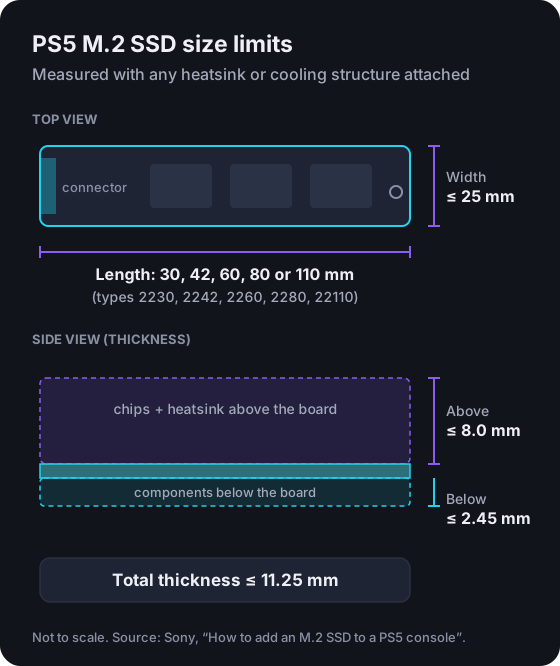
- Width: up to 25 mm. The drive itself is 22 mm wide, so a heatsink can only extend slightly beyond it.
- Above the board: up to 8.0 mm. This covers the chips on top and any heatsink.
- Below the board: up to 2.45 mm. This matters for drives with chips on both sides (double-sided drives) and for heatsinks that wrap underneath. Sony supports both single-sided and double-sided drives.
- Total: up to 11.25 mm.
Not every spec sheet lists above-board and below-board measurements separately. If a spec sheet gives only a total height, that alone isn’t enough to confirm the drive fits. Look for a detailed drawing or contact the manufacturer. Sony’s installation instructions note that if the expansion slot cover doesn’t close properly, the cooling structure is likely too large.
Heatsinks and cooling
Sony states that using an M.2 SSD in a PS5 requires effective heat dissipation with a cooling structure, such as a heatsink or heat-transfer sheet. You have two routes:
- A drive with a built-in heatsink. Simple, but check the drive and heatsink dimensions together against the limits above. Sony recommends against adding another heatsink to a drive that already has one.
- A bare drive plus a separate cooling structure. This also meets the requirement, as long as the combined size stays within the limits. Sony notes that cooling structures come in single-sided and double-sided designs, and single-sided ones fit more easily.
Sony warns against using an M.2 SSD without any heat-dissipation mechanism. A drive with no cooling at all doesn’t meet the requirement.
Sequential read speed
Sony recommends a sequential read speed of 5,500 MB/s or faster. This is a recommendation, not one of the pass-or-fail requirements. A slower drive isn’t ruled out by the published specifications, but Sony recommends a faster one.
Two related points from Sony’s page:
- Host Memory Buffer (HMB). Sony notes that some M.2 SSDs may support HMB, but that the PS5 doesn’t support it, so these drives may perform more slowly than expected. If a spec sheet mentions HMB, check the drive maker’s PS5 information before buying.
- Performance isn’t guaranteed to match. Sony notes that not every game will necessarily perform exactly as it does from the console’s internal SSD.
Note the unit: drive speeds are given in megabytes per second (MB/s), not the megabits per second (Mbps) used for internet connections.
Installation considerations
Sony’s installation instructions differ between console models, so follow the steps for your model. A few points apply to everyone:
- Update the system software first. Sony asks you to make sure the console has the latest system software before installing a drive.
- You need a #1 Phillips (cross-head) screwdriver, a clear, well-lit surface and, optionally, a small flashlight (torch). Sony advises touching a grounded metal object first to discharge static.
- Don’t power on or use the console while the cover is off.
- Formatting erases the drive. When the console next starts, a formatting guide appears. Back up anything on the drive beforehand, and don’t turn the power off during formatting.
- Remove the drive before sending the console for repair, as Sony’s page advises.
Common compatibility mistakes
- Buying M.2 SATA because it’s “M.2”. The form factor fits the slot, but SATA isn’t supported.
- Choosing a Gen3 or x2 drive. Both fall short of the Gen4 x4 requirement.
- Ignoring heatsink dimensions. A tall heatsink can push a compatible drive over the 8.0 mm or 11.25 mm limits.
- Adding a second heatsink to a drive that already has one. Sony recommends against it.
- Forgetting cooling altogether. A bare drive needs a separate cooling structure before use.
- Assuming “PS5 compatible” marketing settles it. Check the published figures yourself; Sony doesn’t guarantee third-party drives.
- Fitting a drive with data on it. Formatting erases it.
Pre-purchase checklist
Use this list with the drive’s specification sheet:
- Interface says PCIe Gen4 x4 and NVMe (not SATA, not Gen3, not x2).
- Capacity is between 250 GB and 8 TB, and big enough for your planned library.
- Type is 2230, 2242, 2260, 2280 or 22110.
- Width with cooling is 25 mm or less.
- Height above the board with cooling is 8.0 mm or less.
- Height below the board with cooling is 2.45 mm or less.
- Total thickness with cooling is 11.25 mm or less.
- It has a heatsink, or you have a suitable separate cooling structure that keeps it within the limits.
- Sequential read speed is ideally 5,500 MB/s or faster.
- You’ve checked the drive maker’s own PS5 information and its returns policy.
Then run the numbers through the PS5 SSD Compatibility Checker, which compares each value with Sony’s limits and flags anything missing.
What to look for when shopping
Separate from Sony's requirements
The checklist above covers what Sony requires. This section covers optional buying considerations, which are our editorial suggestions rather than official guidance. We haven't tested specific drives and we don't rank products. We don't link to retailers from this guide at the moment. If we add retailer links in future, some may be affiliate links, and we'll label them as described in our affiliate disclosure.
Drives that meet the requirements generally fall into a few groups:
- Gen4 NVMe drives sold with a heatsink attached. Often marketed for PS5. Still check the dimensions with the heatsink fitted; “PS5 ready” is a marketing description, not a Sony certification.
- Gen4 NVMe drives without a heatsink. These need a separate cooling structure. Factor the cooler’s cost and size into your decision.
- Standalone M.2 heatsinks. Check the cooler’s own height above and below the board, not just the drive’s.
When comparing drives that pass, these factors are worth weighing:
- Capacity against your actual library, rather than the largest drive you can afford.
- Warranty length and terms from the manufacturer.
- Endurance rating, usually shown as terabytes written (TBW), which indicates how much data the drive is rated to write over its life.
- Whether the drive uses HMB, given Sony’s note about possible slower performance.
- The retailer’s returns policy, in case a drive doesn’t fit or behave as expected.
Frequently asked questions
Does a PS5 SSD need a heatsink?
Sony requires effective heat dissipation with a cooling structure, giving a heatsink and a heat-transfer sheet as examples. The drive doesn't need a built-in heatsink if you fit a suitable separate one, but the drive and its cooling together must stay within the size limits.
Can I use a PCIe Gen3 or M.2 SATA SSD in a PS5?
No. Sony's requirement is a PCIe Gen4 x4 M.2 NVMe SSD. M.2 SATA drives aren't supported, and a Gen3 drive doesn't meet the published Gen4 requirement.
Will a PCIe Gen5 SSD work in a PS5?
Sony's published requirement lists PCIe Gen4 x4 and doesn't mention Gen5, so Sony's guidance doesn't confirm Gen5 drives, and our checker reports them as unable to verify. If you are considering one, look for the drive maker's own PS5 compatibility statement and check its dimensions, including any cooler, against Sony's limits.
Is a slower SSD than 5,500 MB/s allowed?
Sony lists 5,500 MB/s or faster as a recommendation rather than a requirement. A slower drive isn't ruled out by Sony's published specifications, but Sony recommends a faster one.
What happens when I first turn on the PS5 after fitting the SSD?
Sony says a formatting guide appears. Follow the on-screen instructions to format the drive, which erases anything stored on it, and don't turn off the power while formatting is in progress.
Has Vibe Game One tested specific SSDs?
No. This guide explains Sony's published requirements and how to read a drive's specification sheet. It isn't based on hands-on testing of particular drives, and we don't rank products.
Sources and editorial review
Written and reviewed by the Vibe Game One Editorial Team. This guide explains official documentation and general technical concepts. It isn’t based on hands-on testing of specific products. Technical details were checked against these official pages:
- How to add an M.2 SSD to a PS5 console (opens in a new tab) — PlayStation Support (Sony Interactive Entertainment)
- How to manage storage space on your PS5 console (opens in a new tab) — PlayStation Support (Sony Interactive Entertainment)
Sources last checked . Menus and requirements can change with system software updates, so if something on your console looks different, the official page is the most current reference. Vibe Game One is independent and is not affiliated with Sony Interactive Entertainment. Read how we research and update guides in our editorial policy.