Quick answer
A PS5 can add space in two ways. An M.2 SSD fitted inside the console stores and plays both PS5 and PS4 games. A USB drive formatted as USB extended storage plays PS4 games, but only stores PS5 games: you copy them back to console or M.2 storage to play them. If you mainly need more room for PS5 games you play regularly, an M.2 SSD is the option that solves that problem.
If your PS5 doesn’t have enough free space for the next download or update, there are two official ways to add storage, plus several ways to recover space you already have. The catch is that the two expansion options don’t do the same job, so it’s worth understanding the difference before you buy anything.
This guide explains where games can live on a PS5, what each storage type can and can’t do, and how to decide what to add.
How PS5 storage works
Your PS5 can use up to three kinds of storage for games:
- Console storage: the SSD built into the console. Everything works from here.
- M.2 SSD storage: an additional internal drive fitted in the console’s expansion slot. It behaves much like console storage.
- USB extended storage: an external USB drive that the PS5 has formatted for games and apps.
The key difference is where a game can be played from, not just where it can be stored.
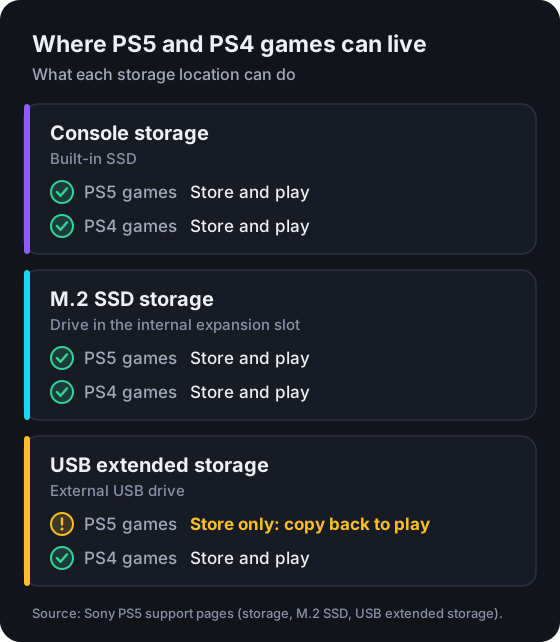
Sony’s storage management page sets this out in a table. In plain terms:
| Storage location | PS5 games | PS4 games | How it’s added |
|---|---|---|---|
| Console storage | Store and play | Store and play | Built in |
| M.2 SSD storage | Store and play | Store and play | Fitted inside the console |
| USB extended storage | Store only: copy back to play | Store and play | Plugged into a USB port |
Saved data and captures follow different rules again. According to the same Sony page, PS5 saved data can be uploaded to cloud storage, which requires PlayStation Plus. PS4 saved data can go to cloud storage or be copied to a USB drive. Screenshots and video clips can be copied to a USB drive, but they can’t be copied back to the console afterwards.
Check how much space you have
Go to Settings > Storage. Sony’s page explains that this shows your free space and how storage is being used by games, media and saved data. Plan around the free space this screen shows, rather than the capacity printed on a drive’s box. Sony’s page also notes that you can manage PS5 storage from the PlayStation App on iOS and Android.
Internal console storage
Console storage is where every game works without restrictions, so it’s worth keeping your most-played PS5 games here or on an M.2 SSD.
The installed size of a game isn’t fixed. Updates, add-ons and extra language or quality packs all change it, and the size you see when buying a game may not include future patches. That’s why it pays to leave some headroom rather than filling storage to the last gigabyte.
M.2 SSD expansion
The PS5 has an internal expansion slot for an M.2 SSD. Once installed and formatted, Sony says the drive can be used to download, copy and launch both PS5 and PS4 games. In practice it extends the space your games can be played from.
What you need to know before buying:
- The drive must meet Sony’s requirements: a PCIe Gen4 x4 M.2 NVMe SSD (Key M), 250 GB to 8 TB, in one of the supported sizes and within strict thickness limits. How to choose an SSD for PS5 explains each requirement.
- Cooling is required. Sony states that the drive needs effective heat dissipation, such as a heatsink or heat-transfer sheet. This can be built into the drive or fitted separately.
- Fitting it involves opening the console. You need a #1 Phillips (cross-head) screwdriver, and Sony asks you to make sure the console has the latest system software first.
- The drive is formatted on first start-up, which erases it. Don’t fit a drive that holds files you want to keep.
- Compatibility isn’t guaranteed. Sony states it can’t guarantee that every drive meeting the published specifications will work, and that not every game will necessarily perform exactly as it does from the internal SSD.
Before you buy, you can enter a drive’s published specifications into the PS5 SSD Compatibility Checker to see whether they fall within Sony’s limits.
USB extended storage
Any USB drive that meets Sony’s requirements can be formatted as USB extended storage. According to Sony’s USB extended storage page, the drive must:
- support SuperSpeed USB 5 Gbps or later
- have between 250 GB and 8 TB of capacity
- be connected directly to the console, not through a USB hub.
Only one USB extended storage drive can be connected at a time. As with M.2 drives, Sony notes that not every device is guaranteed to work.
To set one up, connect the drive, go to Settings > Storage, select USB Extended Storage, then Format as USB Extended Storage. Formatting erases everything on the drive, and Sony warns against switching off the console or disconnecting the drive while formatting is in progress.
Storing is not the same as playing
This is the key distinction. A PS5 game on USB extended storage is parked, not playable. To play it, you copy it back to console storage or M.2 SSD storage. PS4 games are different: they can be played directly from USB extended storage, and you can set them to install there.
USB extended storage is still genuinely useful for PS5 owners. Copying a parked game back avoids downloading it again, which matters on a slow connection or with a monthly data cap.
Disconnect it safely
Before unplugging the drive while the console is on, go to Settings > Storage > USB Extended Storage > Safely Remove from PS5. If the console is switched off, Sony says to wait until the power indicator is completely off. Removing a drive incorrectly can cause data loss or corruption.
How PS5 and PS4 games differ
Because the rules differ by game type, the right setup depends on your library:
- PS5 games must be on console storage or an M.2 SSD to play. USB extended storage is an archive for them.
- PS4 games can be played from any of the three locations, including USB extended storage.
If much of your library is PS4 games played on a PS5, a USB drive can move them off console storage without affecting how you launch them. That frees internal space for PS5 games.
How to free up storage
Before buying anything, it’s worth recovering space you already have.
- Review what’s installed. Go to Settings > Storage > Console Storage > Games and Apps to see what’s taking up space. Look for games you’ve finished or haven’t launched in months.
- Delete whole games you aren’t playing. Select them and choose Delete. Sony states you won’t lose access to deleted games or apps; you can download them again from your game library.
- Remove parts of a game. If a game shows Customize next to its name, you can delete parts of its data, such as modes you don’t use, and still play the rest.
- Clear out captures. Screenshots and video clips can take a lot of space. Copy any you want to keep to a regular USB drive first; Sony notes they can’t be copied back afterwards.
- Look after saved data first. PS5 saved data is managed separately under Settings > Saved Data and Game/App Settings. If you have PlayStation Plus, you can upload it to cloud storage there. Check that progress you care about is safe before deleting a game.
If you’d rather keep a game without re-downloading it later, move it to USB extended storage instead of deleting it.
How to move games between storage locations
Sony’s instructions for moving games run through the Game Library:
- Go to your games home and select Game Library.
- Highlight the game, press the Options button and select Move Games and Apps.
- If you have both an M.2 SSD and USB extended storage, choose the tab for the destination, for example Movable to M.2 SSD Storage or Movable to USB Extended Storage.
- Select the items and choose Move.
To bring a PS5 game back from USB extended storage so you can play it, Sony describes copying it: in Game Library, open the Installed tab, highlight the game, press Options and select Copy.
You can also choose where new downloads go from Settings > Storage > Installation Location.
Choosing the right expansion option
Start with what’s actually filling your storage, then match the option to the problem:
| Your situation | Better fit | Why |
|---|---|---|
| Too many PS5 games you play regularly | M.2 SSD | PS5 games can only be played from console or M.2 storage |
| A large PS4 library played on PS5 | USB extended storage | PS4 games play directly from it |
| You rotate through games and finish them | USB extended storage | Park finished PS5 games instead of re-downloading |
| You’d rather not open the console | USB extended storage | Plug-in setup, no tools needed |
| You want the most playable space overall | Both | M.2 for playing, USB for storing |
For a deeper side-by-side comparison, read External USB drive vs M.2 SSD for PS5.
Work out how much you need
Make a list of the games you want installed at the same time, with their install sizes from the store page or Settings > Storage. Add a margin for updates. The PS5 Storage Planner totals your list against the space you have and shows how much is left or how far over you are, so you can see whether a larger drive is worth it.
Common mistakes to avoid
- Buying a USB drive to play more PS5 games. It stores PS5 games but can’t play them. If that’s your goal, you need an M.2 SSD.
- Buying an M.2 drive without checking the requirements. Interface, size, thickness and cooling all matter. A drive that is too thick, especially with a heatsink, may stop the expansion slot cover from closing properly.
- Fitting a drive with data on it. Both M.2 and USB extended storage are formatted by the console, which erases them.
- Connecting USB extended storage through a hub. Sony doesn’t support it. Connect the drive directly.
- Unplugging the drive without safely removing it. Use Safely Remove from PS5 first.
- Deleting a game before checking its saved data. Make sure progress you care about is backed up.
- Planning around box capacity. Plan around the free space your console reports, and leave headroom for updates.
Frequently asked questions
Can I play PS5 games from an external USB drive?
No. PS5 games can be stored on USB extended storage, but Sony states they can't be played from it. Copy the game back to console storage or an M.2 SSD before playing. PS4 games can be played directly from USB extended storage.
Do I lose a game if I delete it to free up space?
No. Sony says you won't lose access to deleted games or apps, and you can download them again from your game library. Your PS5 saved data is managed separately, so check whether it is backed up before deleting anything you care about.
Can I use an M.2 SSD and USB extended storage at the same time?
Yes. Sony's move instructions include separate tabs for each destination when both are connected. Only one USB extended storage drive can be connected and used at a time, and it can't be connected through a USB hub.
What is the difference between USB extended storage and a regular USB drive?
A drive formatted as USB extended storage holds games and apps. A regular USB drive, formatted as FAT or exFAT, is used for things like copying screenshots and video clips or PS4 saved data. Formatting a drive as USB extended storage erases everything on it.
How much space should I add?
It depends on how many games you want installed at once. List the games you play regularly with their install sizes, add room for updates, and compare the total with the free space shown in Settings > Storage. The PS5 Storage Planner on this site does the arithmetic for you.
Sources and editorial review
Written and reviewed by the Vibe Game One Editorial Team. This guide explains official documentation and general technical concepts. It isn’t based on hands-on testing of specific products. Technical details were checked against these official pages:
- How to manage storage space on your PS5 console (opens in a new tab) — PlayStation Support (Sony Interactive Entertainment)
- How to add an M.2 SSD to a PS5 console (opens in a new tab) — PlayStation Support (Sony Interactive Entertainment)
- USB extended storage on PS5 consoles (opens in a new tab) — PlayStation Support (Sony Interactive Entertainment)
Sources last checked . Menus and requirements can change with system software updates, so if something on your console looks different, the official page is the most current reference. Vibe Game One is independent and is not affiliated with Sony Interactive Entertainment. Read how we research and update guides in our editorial policy.