Quick answer
Choose an M.2 SSD if you need more space for PS5 games you actually play, because PS5 games can only be played from console or M.2 storage. Choose a USB drive formatted as USB extended storage if you want an easy, plug-in place to keep PS4 games (which play from it) or to park PS5 games you aren't playing right now. Many players end up using both.
The PS5 offers two ways to add storage, and they look interchangeable on a shop shelf. They aren’t. The deciding question is simple: do you need more space to play PS5 games, or more space to keep games?
This comparison sets out what each option does, based on Sony’s support pages, and which suits different kinds of players. For a broader introduction to PS5 storage, start with the complete storage expansion guide.
What each option does
USB extended storage is an external USB drive that the PS5 has formatted for games and apps. It plugs into a USB port, needs no tools and can be unplugged and moved. Sony’s USB extended storage page states that PS5 games can’t be played from it, though they can be stored on it, while PS4 games can be played directly from it.
M.2 SSD storage is an additional drive fitted inside the console’s expansion slot. According to Sony’s M.2 SSD page, it can be used to download, copy and launch both PS5 and PS4 games.
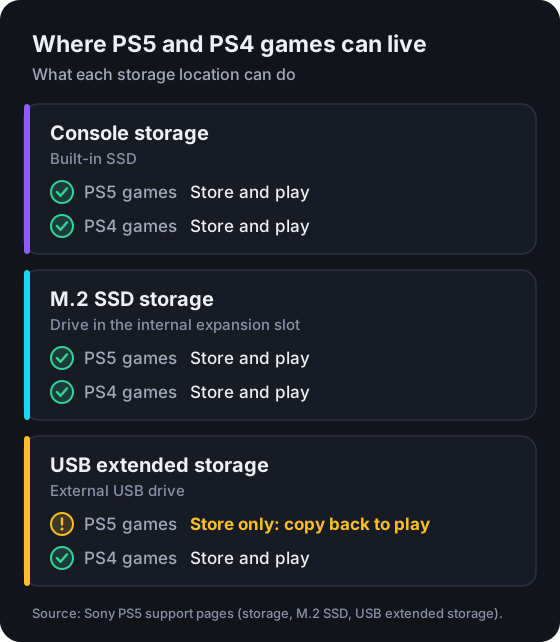
Side-by-side comparison
| Feature | USB extended storage | M.2 SSD storage |
|---|---|---|
| Where it connects | A USB port on the console | The internal expansion slot |
| Play PS5 games from it | No: store only, copy back to play | Yes |
| Play PS4 games from it | Yes | Yes |
| Supported capacity | 250 GB to 8 TB | 250 GB to 8 TB |
| Connection requirement | SuperSpeed USB 5 Gbps or later, no USB hub | PCIe Gen4 x4 M.2 NVMe SSD (Key M) |
| Cooling | Not specified by Sony | Required: effective heat dissipation, such as a heatsink |
| Size limits | None published for the drive | Strict width, length and thickness limits |
| Tools needed | None | #1 Phillips (cross-head) screwdriver |
| Setup | Plug in, then format from Settings | Fit inside the console, then format on start-up |
| Formatting | Erases the drive | Erases the drive |
| How many at once | One USB extended storage drive in use | One drive in the expansion slot |
| Moving to another PS5 | Plug into the other console | Remove and refit; Sony says no reformat is needed |
Sony notes for both options that not every device is guaranteed to work.
Installation and setup
USB extended storage
- Connect the drive directly to a USB port on the console. Sony’s format instructions refer to the SuperSpeed USB 10 Gbps Type-A and Type-C ports.
- Go to Settings > Storage > USB Extended Storage.
- Select Format as USB Extended Storage. This erases the drive.
Before unplugging it while the console is on, use Settings > Storage > USB Extended Storage > Safely Remove from PS5.
M.2 SSD
Fitting an M.2 drive means removing a cover, opening the expansion slot, adjusting a spacer to the drive’s length, inserting the drive and fastening a screw. Sony publishes step-by-step instructions for each console model group. Update the system software first. When the console next starts, it offers to format the drive.
Sony publishes these steps for owners to follow, but the process does involve opening your console. If that puts you off, USB extended storage is the no-tools option, with the trade-off described below.
Game storage and playback
This is the core difference.
- From an M.2 SSD, you play PS5 games directly, just as you would from console storage. No copying back and forth.
- From USB extended storage, PS5 games are parked. To play one, copy it back to console storage or the M.2 SSD. In Game Library, open the Installed tab, highlight the game, press Options and select Copy.
So USB extended storage is best thought of as a shelf for PS5 games, while M.2 storage is more room on the desk.
PS4 game compatibility
PS4 games work differently. Sony states that PS4 games can be played directly from USB extended storage, and you can set them to install there by default under Settings > Storage > Installation Location. M.2 SSD storage also launches PS4 games.
If a large part of what you play on your PS5 is PS4 games, a USB drive can take all of them off console storage without changing how you play them. That frees internal space for PS5 games.
Moving games between storage
Both options use the same route in Game Library: highlight the game, press Options, choose Move Games and Apps, select the items and choose Move. If both kinds of storage are connected, the console shows a separate tab for each destination, Movable to M.2 SSD Storage and Movable to USB Extended Storage.
Typical routines:
- With an M.2 SSD: move PS5 games between console storage and the M.2 drive to balance space. Both are playable, so it mostly doesn’t matter which games sit where.
- With USB extended storage: move PS5 games you’ve finished or paused to the USB drive, and copy them back when you want to play again. This avoids downloading the game again, which helps on slow or data-capped connections.
Capacity considerations
Both options support 250 GB to 8 TB. The question is what that capacity is for:
- M.2 capacity is playable PS5 capacity. Size it to the number of PS5 games you want ready to launch at once.
- USB capacity is archive capacity for PS5 games, and playable capacity for PS4 games. It can usefully be larger than the number of games you play at once.
Only one USB extended storage drive can be used at a time, so choose a size that covers your archive rather than planning to add several drives. The PS5 Storage Planner can total the games you want on each drive.
Cost and convenience trade-offs
We don’t quote prices because they change too often to stay accurate. When comparing current prices, these general points apply:
- USB extended storage has the lowest setup effort and works with drives you may already own, provided they meet the USB 5 Gbps and capacity requirements. Compare current prices per terabyte yourself, as they vary by drive type, capacity and retailer.
- An M.2 SSD must be a PCIe Gen4 NVMe drive with cooling, which narrows the choice. You may also need to buy a separate heatsink. In return, it’s the only way to add space you can play PS5 games from.
- Convenience cuts both ways. USB storage is easy to set up but means copying PS5 games back before playing. M.2 storage takes longer to fit but needs no shuffling afterwards.
Which option suits you?
| If you… | Consider | Because |
|---|---|---|
| Keep running out of room for PS5 games you play | M.2 SSD | It’s the only expansion PS5 games can be played from |
| Play mostly PS4 games on your PS5 | USB extended storage | PS4 games play directly from it |
| Finish games and move on, but like to keep them | USB extended storage | Park PS5 games instead of re-downloading |
| Have a slow or capped internet connection | USB extended storage, possibly with M.2 | Copying a parked game doesn’t use your connection |
| Don’t want to open the console | USB extended storage | No tools or internal access needed |
| Want the most flexibility | Both | M.2 for playing, USB for storing |
If you decide on an M.2 SSD, read How to choose an SSD for your PS5 and check a drive’s specifications with the PS5 SSD Compatibility Checker before buying.
Frequently asked questions
Is an external drive or an M.2 SSD better for PS5?
They solve different problems. An M.2 SSD adds space you can play PS5 games from. USB extended storage can't play PS5 games, but it can play PS4 games and store PS5 games you aren't currently playing. Pick based on which problem you have.
Can I move a USB extended storage drive to another PS5?
Yes. Sony says a drive already used as extended storage with a PS4 or another PS5 can simply be connected to your PS5. Sony's M.2 page also says formatting isn't needed when moving an M.2 SSD between two PS5 consoles, but the drive must be removed physically.
Do I need to reformat a USB drive to use it with a PS5?
Yes, unless it's already USB extended storage from a PS4 or PS5. The console formats it as USB extended storage, which erases everything on it.
Can I use a USB hub for extended storage?
No. Sony states the drive can't be connected through a USB hub. Connect it directly to one of the console's USB ports.
Why keep PS5 games on USB extended storage if I can't play them there?
Sony suggests moving games to USB extended storage if you don't want to delete them from console storage. Keeping a game there means you don't have to download it again before playing, as long as you copy it back to console storage or an M.2 SSD first.
Sources and editorial review
Written and reviewed by the Vibe Game One Editorial Team. This guide explains official documentation and general technical concepts. It isn’t based on hands-on testing of specific products. Technical details were checked against these official pages:
- USB extended storage on PS5 consoles (opens in a new tab) — PlayStation Support (Sony Interactive Entertainment)
- How to add an M.2 SSD to a PS5 console (opens in a new tab) — PlayStation Support (Sony Interactive Entertainment)
- How to manage storage space on your PS5 console (opens in a new tab) — PlayStation Support (Sony Interactive Entertainment)
Sources last checked . Menus and requirements can change with system software updates, so if something on your console looks different, the official page is the most current reference. Vibe Game One is independent and is not affiliated with Sony Interactive Entertainment. Read how we research and update guides in our editorial policy.